Two months ago on the day, I told you that I have a coach now, and today I wanted to give a first update on how that’s all going (do note we kicked off the coaching on August 12 so I am ending my 11th week this week).
In short: it’s been really great!
We email at least every week as a check-in and I can email any time I have additional questions or need anything, and schedule video calls as needed as well though I haven‘t needed to do that for a while now. Any need from feedback and I just send him a video of my exercises.
From a nutritional perspective, I’ve achieved all-time low body fat percentage and are approaching all-time low weight (as far back as I have measurements at least, which is 2011). Some way to go until the 10% goal before we switch to very slowly packing on mass instead, but hopefully by January I will be ready.
And workout-wise, things are going way better than I thought in a calorie restrictive state. I feel strong and motivated at the gym, and have set a couple of theoretical personal bests in AMAP (As Many As Possible, reps that is) tests for some of the key exercises (squat and deadlift specifically), so that is incredibly exciting.
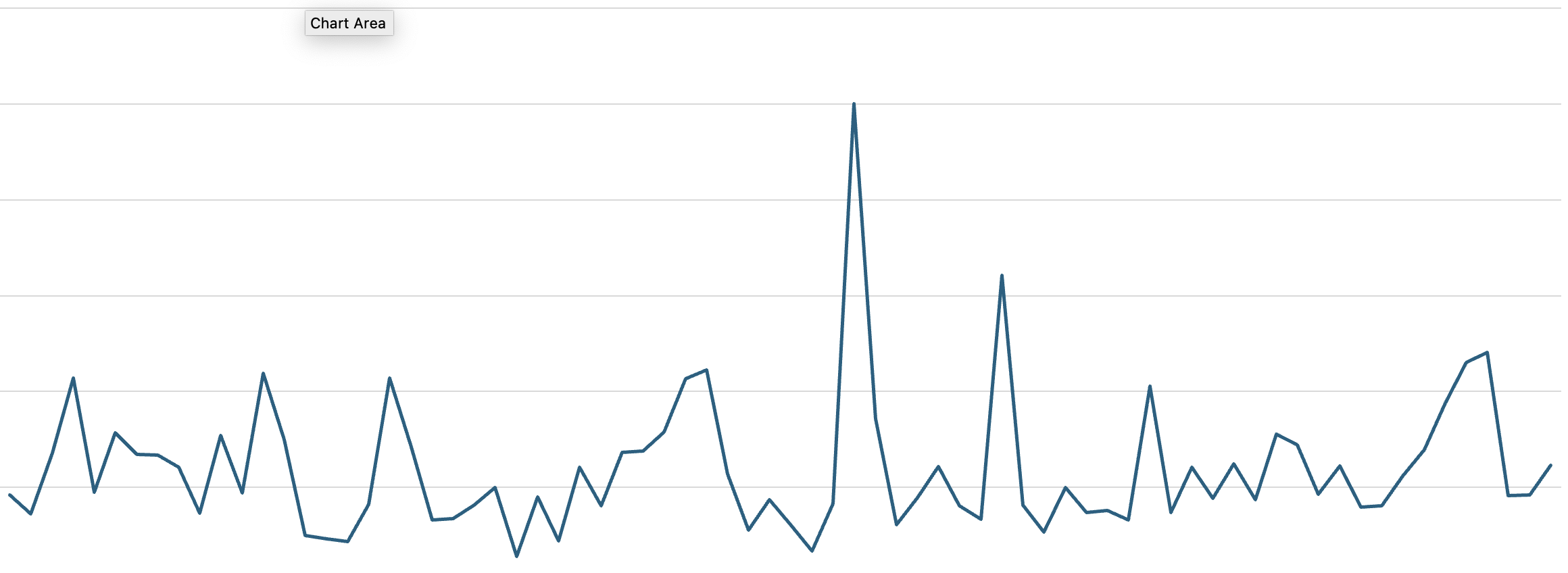
It has not been all smooth sailing though. The weekends have been a challenge, see if you can spot a trend in the below graph.
Even without labels on the X and Y axis, I think you can guess this one. It is daily calorie consumption since the start of the coaching period. Can you guess the spikes? Weekends, indeed. I have been good on diet on most weekdays but the weekends have been a struggle. And this is by no means anywhere close to an extreme diet. We are talking about a 500 calorie restriction versus my base metabolic rate, so very reasonable and should amount to a healthy 0.45kg fat loss per week. But, I lack some control in weekends both with snacks and alcohol. Striving to do better in November so as to not have to adjust my deadline when I can start adding again.
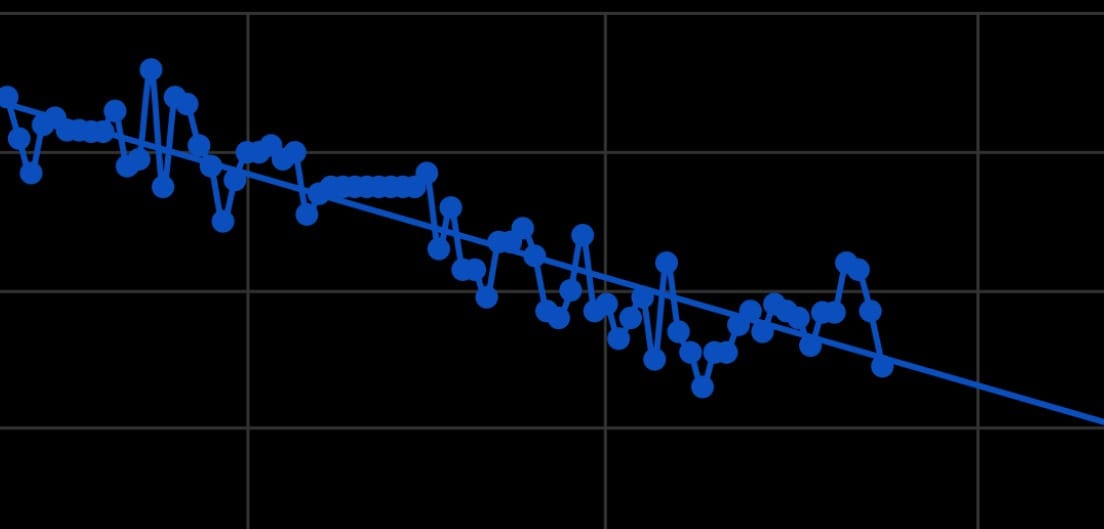
With that said, this is my progress so far – the labels are left out on purpose as no need to show my exact numbers, more the trend that is interesting:
WeightBody Fat %
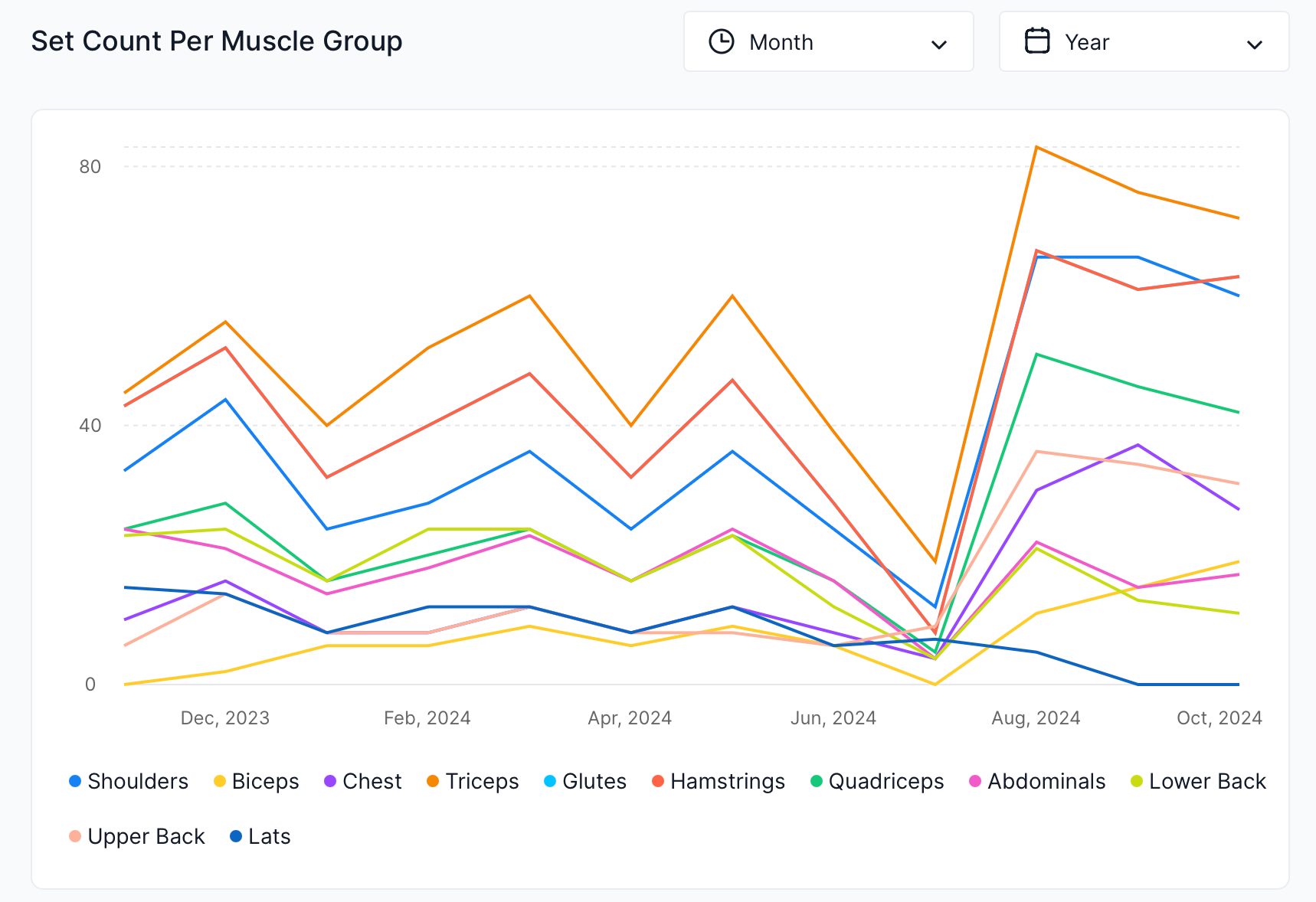
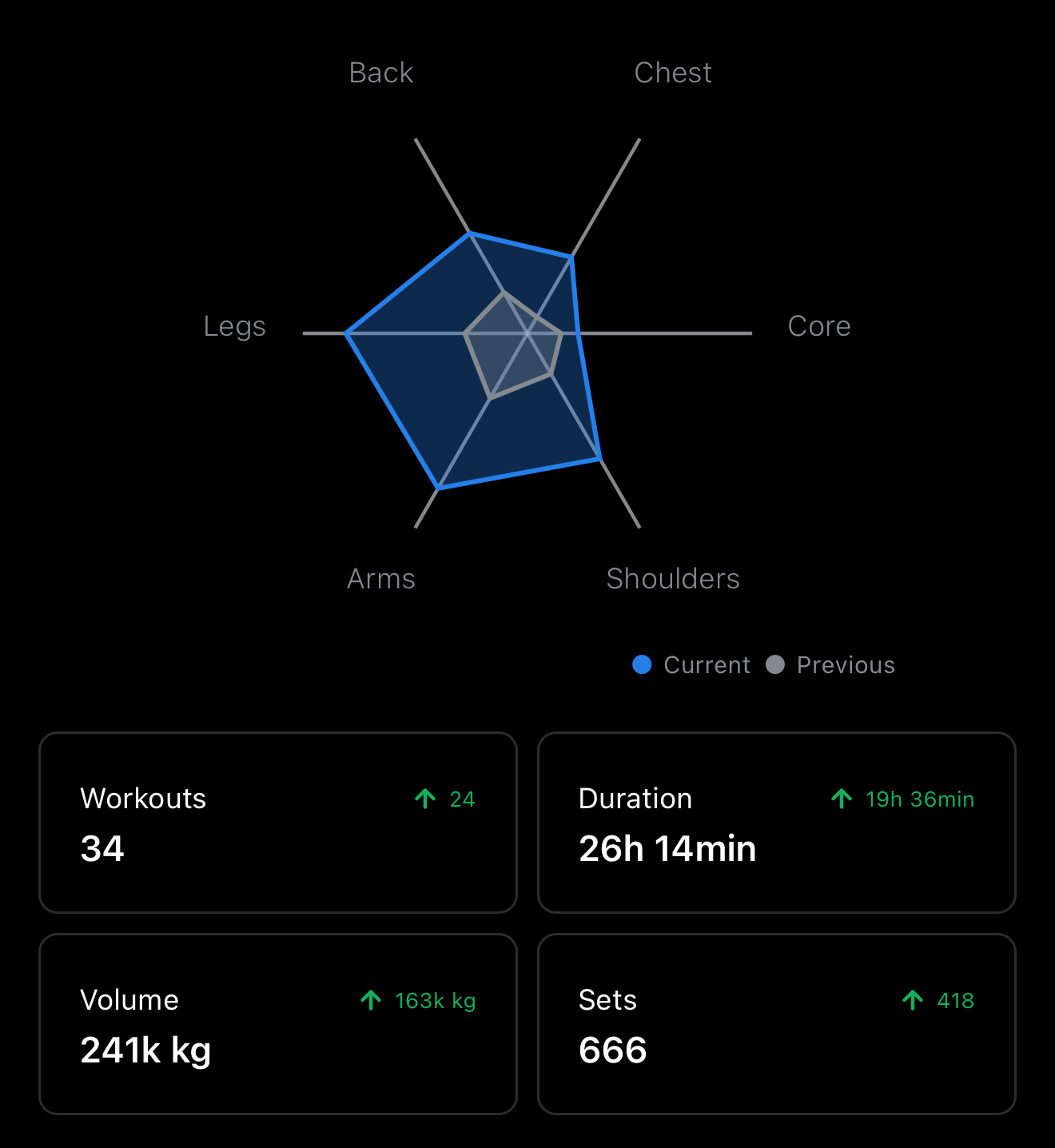
Back to the workout regimen – I have some more graphs I want to show you, to bring home the point on how effective just having a coach can be. So below we can see basically how much I have been working out per month over the last year. Think you can find the pretty sharp and so far consistent increase for all these different ways of measuring it.
Workout stats for 2024 year-to-date, right to left top to bottom: Set Count per Muscle Group per Month, Total Sets per Month, Total Volume per Month and Total Gym Workout Duration per Month
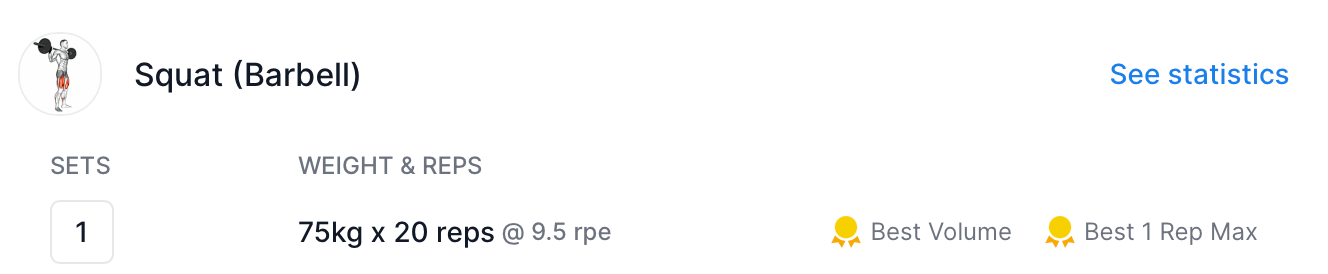
And here the exercises where I have set new all-time records for hypothetical 1RM based on reps completed on these weights:
So, what’s next? I have my first work travel coming up in long time starting tomorrow until next weekend, so a full week. It’s long flights, 20 hrs one way, and of course time difference. I expect impact to sleep and nutrition, though I will of course do my best. But there’s a social aspect to work travel and there will be dinners and the like – but I at least hope not to return back home with an increase. Time will tell. Workout-wise the gym supposedly has a “well-equipped” gym – and if that is true I intend to workout as normal and complete the coached sessions as they are laid out. If the gym is not well equipped, my coach will provide bodyweight-only workouts instead, or some sort of in-between depending on. I just love that flexibility – instead of getting stuck due to decision fatigue and not doing anything, he will just tell me what to do based on what is available – and I will feel good as long as I get those done.
After that it’s focus on hitting that 10% body fat target as mentioned, and we will see how long I need. Christmas will of course pose a challenge, but I can still be smart and save myself from overeating outside the few occasions where that is actually sort of expected. The home guard base training was rescheduled to February so that no longer pose a challenge, by then I really should be done with the calorie restrictive period so I can just “go for it” during that training.
I think that’s it for now! As I said in the beginning, I couldn’t be happier with how this coaching is working out and I am finding it incredibly worth the money as I feel stronger than in a long time – and that is with only 3 sessions a week versus the 4 I was doing very regularly before becoming a parent. I am just so much more efficient now.
I’ll end with a nice graph showing my last 3 months vs previous 3 months of muscle workout distribution and some other statistics.
You can use gestures to interact with your Apple Watch. Your watch performs different functions when you tap its screen or press it for a longer time.
Tap the screen to select a button or item. A tap also brings the screen to full brightness when the watch is in Always-on mode
Tap and hold – tap the screen and keep your finger in place to change the watch face, see options in an app, and more.
Drag your finger across the screen to scroll or adjust a
Swipe up, down, left
Make sure your iPhone can unlock your Apple Watch
Go to the Apple Watch app on your iPhone, tap My Watch, tap Passcode, then turn on Unlock with iPhone.
Your iPhone must be within normal Bluetooth range (about 33 feet or 10 meters) of your Apple Watch to unlock it. If Bluetooth is off on Apple Watch, enter the passcode on your watch to unlock it.
This means every time your iPhone gets unlocked, by Face ID or otherwise, if your Apple Watch is on your wrist, it unlocks as well. No passcode entering needed.
Create your own watch face(s)
Start by exploring all the faces that are available which is best done in the Watch-app on your iPhone, go to the tab “Watch Gallery”. Also explore Apple’s online guide to all the faces that explain their features.
Your Apple Watch keeps track of your movement throughout the day and encourages you to meet your fitness goals. It tracks how often you stand, how much you move, and how many minutes of exercise you do – automatically in the background and no need to start workouts for this.
Three rings in different colors summarize your progress. The goal is to sit less, move more, and get some exercise by completing each ring every day.
The Fitness app on your iPhone keeps a record of your activity. If you’ve tracked at least six months of activity, it displays daily trend data for active calories, exercise minutes, stand hours, stand minutes, walk distance, cardio fitness, walking pace, and more. In the Fitness app on iPhone, tap Summary, then scroll to Trends to see how you’re doing compared to your average activity.
Read on in the below article how this all works and how to set it up to work best for you. To get accurate measurements, make sure you have followed the steps in the last article here.
Start using health features
Your Apple Watch can help you meet your sleep goals, track important information related to your heart, track your nightly sleep body temperature, identify sleep apnea, keep a log of your emotions and mood, log your medications and track your menstrual cycle – and much more.
Sleeping with your Apple Watch is an essential part of the experience, as only then can many of the measurements accurately happen. So just get into the habit. See the tip below on how to always fast-charge your Apple Watch – and you will only need to drop it on the charger while in the shower or a similar quick 15-20 minute activity – and you will never run out of charge. If you forgot to charge, 8 minutes on a fast charger is enough to sleep track a whole night.
Understand safety features
One of the main benefits of the Apple Watch is its many life-saving safety features. The above video showcases only real people and their real stories of how the Apple Watch has helped them.
It’s good to understand what these features are and how they work.
Have a look through the most important ones below (how to contact emergency services, set up your Medical ID, and understand how to use Check In):
Go for your first workout
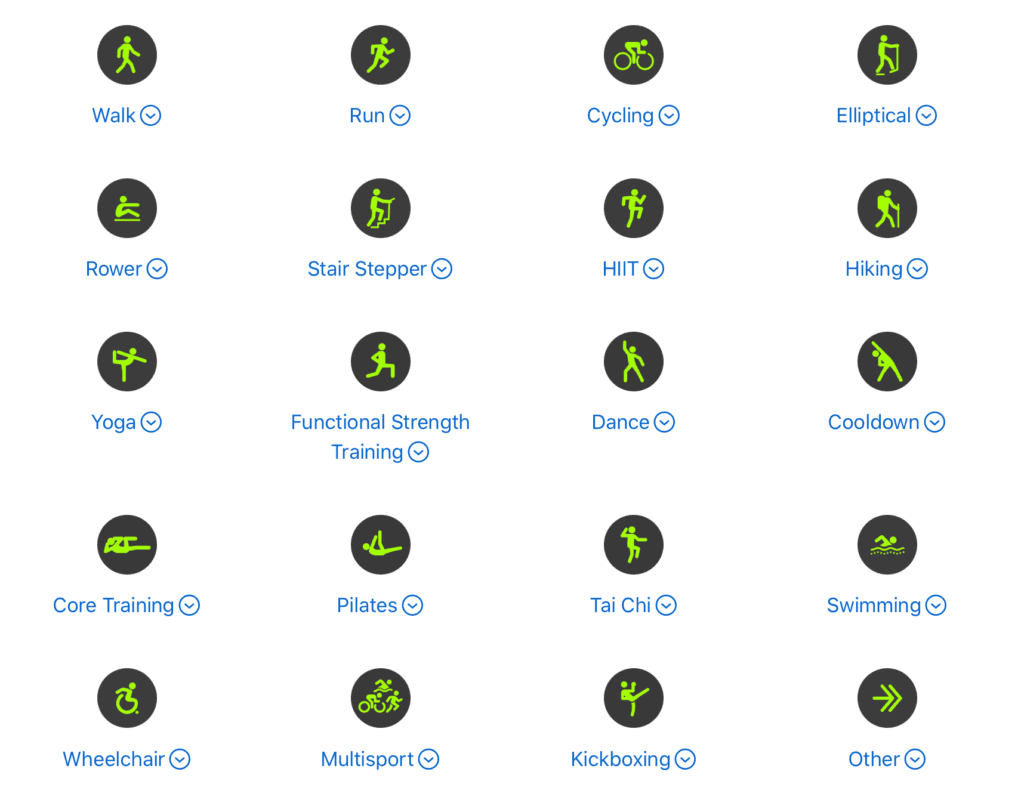
Your Apple Watch can accurately track and give you insights for all kinds of workouts – from basics like running, cycling and swimming – to more advanced like pilates, dance, stair stepper and so on.
Check out the below links for how to start a workout and what workout types are supported and how they differ from each other:
Set up Apple Pay
Stop paying with plastic cards, and stop paying with your iPhone! The Apple Pay experience is its best with Apple Watch. Besides adding your credit cards (which you should do first), you can also add many loyalty cards such as self-scanning for many grocery chains and some cars even support Apple CarKey which exists then in the Apple Wallet app.
Ping your iPhone
You can use your watch to find your iPhone nearby by pinging it (and your iPhone can similarly ping your Apple Watch).
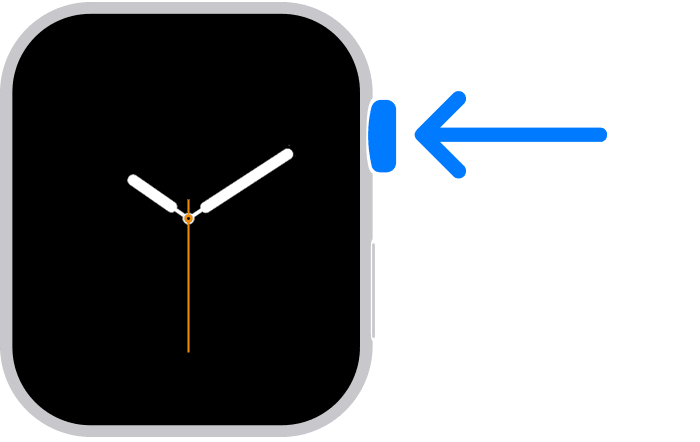
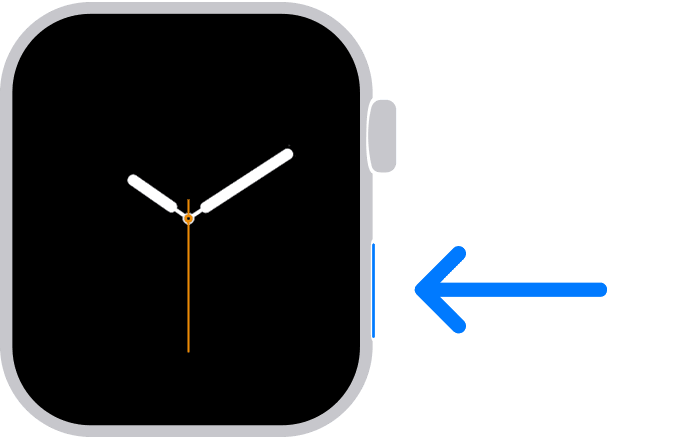
Press the side button to open Control Center on Apple Watch.
Tap the icon that looks like a shaking/vibrating iPhone
Your iPhone plays a sound, and if Apple Watch is within range and you have a newer iPhone, the screen also displays a general heading and distance to your iPhone—50 feet, for example.
If your iPhone isn’t in range of Apple Watch, try using Find My from iCloud.com.
TIP: If it’s dark, press and hold the ping iPhone-icon and it will also make the flashlight go off on the iPhone to make finding it easier.
Understand Control Center
Control Center is what opens when you press the Side Button (see first tip). This is an important part of the Apple Watch and you should know how to use it, what its features are and how to customize it:
Understand and use the Smart Stack
The Smart Stack is one of the best more recent additions to the watchOS operating system. You get to it by scrolling upwards on the Digital Crown. This stack of widgets dynamically change and update throughout the day, and can show you many things: Playback Controls if something is playing nearby, sleep tracking if you just awoke, song recognition if it hears a song playing, weather, your activity rings, Live Activities from your iPhone such as good delivery, Uber pickup status, and so on.
It uses information such as the time, your location, and your activity to automatically display the most relevant widgets at the appropriate time in your day. You can also add and remove your own preferred widgets to this stack, but I recommend letting it be dynamic.
Check out the video and the article below to fully understand this feature.
Unlock your Mac with Apple Watch
If you have a Mac that is newer than 2013 (so they can be pretty old!) it is possible to unlock your Mac automatically when sitting down in front of it, just by wearing your Apple Watch. This means you can set a secure password and require it after screensaver (which is a best practice) and not be bothered often to enter it because your Apple Watch will take care of it.
Set up is easy, just follow:
Use Siri
Siri on Apple Watch is one of my most-used features. If you did not change the default settings, you just clearly raise your wrist toward you and start talking about Siri will be triggered automatically. You can also trigger Siri press and holding the Digital Crown until you see the listening indicator, and start talking.
Use Double Tap
You can use the double tap gesture to answer a call, reply to a message, see and scroll through your Smart Stack, scroll through supported apps, and more.
Tap your index finger and thumb together twice, using just the hand that wears the Apple Watch, and magic happens:
Understand sounds and notifications
First of all: use your Apple Watch basically always and only in Silent Mode, is my recommendation. The haptic taps it provides is enough. Silent Mode is nice to have off during longer workouts though, but other than that no need.
Learn how to do that below, as well as how to customize notifications. But don’t turn off notifications – that’s like the top feature of the Apple Watch. Use Focus modes instead:
Organize your apps
Make sure you are moving your most frequently used apps to the top of the app grid view, so you can quickly access them (remember, one press on the Digital Crown opens the Home view which shows all apps). It is very easy to do this, just follow:
See and respond to notifications
Use your Apple Watch without your iPhone nearby
If you bought your Apple Watch with cellular and have an active cellular plan, there are no limits to what you can do with your Apple Watch even if your iPhone is not nearby. If however, you did not buy an Apple Watch with cellular, there are still things you can do without your iPhone, read on for details:
Set up cellular service
Make sure you’ve setup cellular service in case you bought your Apple Watch with cellular, which I recommend:
Use a fast charger
Make sure you are charging your Apple Watch in fast-charge mode – that gives 0-80% battery in around 30 minutes. You should always charge this way, and it means you only need to drop it on a charger for 10-20 minutes every day and you can wear it 24/7.
To achieve fast charging for Apple Watch, make sure you use the included charging cable with either a:
Apple 18W, 20W, 29W, 30W, 35W, 61W, 87W, or 96W USB-C Power Adapter, or:
A comparable third-party USB-C power adapter that supports USB Power Delivery (USB-PD) of 5W or greater
More below:
Watch these videos
Here’s a small collection of additional short videos I recommend watching to learn more features of your Apple Watch.
Remember, this is just the beginning
There is so much more to explore with the Apple Watch beyond what has been listed here. The Apple Watch is an entire computer on your wrist, with a full dedicated operating system on it – and it is way more powerful than a “smart activity band” as well as other smart watches.
The below list is just examples of more things to explore at some point, but it is far, far from exhaustive.
And all this is still before we get into 3rd party apps. On the Apple Watch App Store there are literally tens of thousands of Apple Watch apps made by developers other than Apple which enable even more cool things and expand what your Apple Watch can do.
If you own a recent iPhone, you might have missed that you have the latest-generation ultra wideband chip in it. That chip means that you can you use Precision Finding in the Find My-app with other devices with the same chip. So you can for example find a specific person down to the centimeter in a huge crowd of people. And if you also own a newer Apple Watch or AirPods, you can use it to find your phone or AirPods with a lot greater precision.
Below video and article explain better how this actually works.
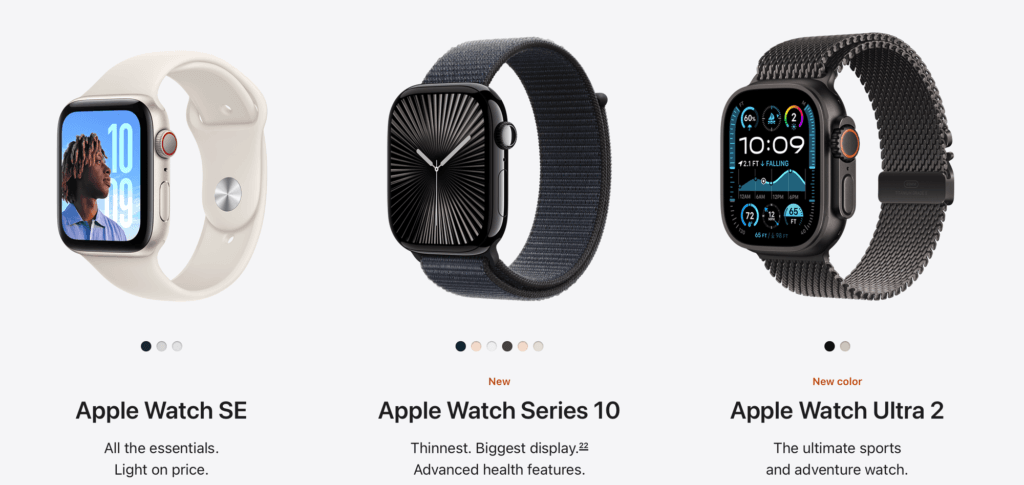
In this article, I am going to give my recommendations and reasoning for the various choices that you will be faced when having decided to buy an Apple Watch (which is a fantastic decision, by the way. You will not regret it). In summary, you have these choices to make: overall model, case material, case color, case size, with or without cellular, and finally watch band – which is the least consequential choice since they are very easily replace – that is part of the appeal of the watch, to have many bands you switch between.
1) Model
When it comes to choosing the overall model, there is a lot of thought you will need to put into it: but honestly, only between picking between Series 10 and Ultra 2. You can safely ignore the other models.
1.1 Apple Watch Series 10
Should be the default choice for most users. It’s the canonical Apple Watch for a reason. This is the primary line of watch and has the newest features.
1.2 Apple Watch Ultra 2
My choice, and the right choice for more buyers than you would first assume. In 2024 specifically, it might not be the best choice as there is not yet an Ultra 3, and Ultra 2 came out in 2023. So the Series 10 is in some ways better than the Ultra 2.
But with the Ultra, you get a bigger display and massively longer battery life which to me alone make the model worth it. Youget more than that though. I see it every day on more and more wrists, and have yet to see it on one where it looks anything close to too big – including short/small/petite women. Instead of looking at this as the ”extreme sports” version, you should look at it as simply what it is – it’s the best Apple Watch. Best in terms of features and materials. But of course, more expensive. And larger.
But again, in 2024 the Series 10 is probably the best choice for the majority still.
1.3 Apple Watch SE
Should be picked by very few. If buying to a young kid or elderly parent, maybe. But the lack of some of the health and safety features make me hesitant to recommend it even then. If you are seriously still considering this, it’s almost always a better choice to buy an older Apple Watch Series, so like a Series 6 or 7 or 8.
1.4 Apple Watch Nike
Isn’t different in any way to Series 9, just comes with some unique watch faces at the same price. I don‘t see any real reason to pick it.
1.5 Apple Watch Hermés
Shouldn’t be bought by anybody. No technical difference to Series 9, but again some unique Hermés designed watch faces plus the absurdly expensive watch bands.
2) Material
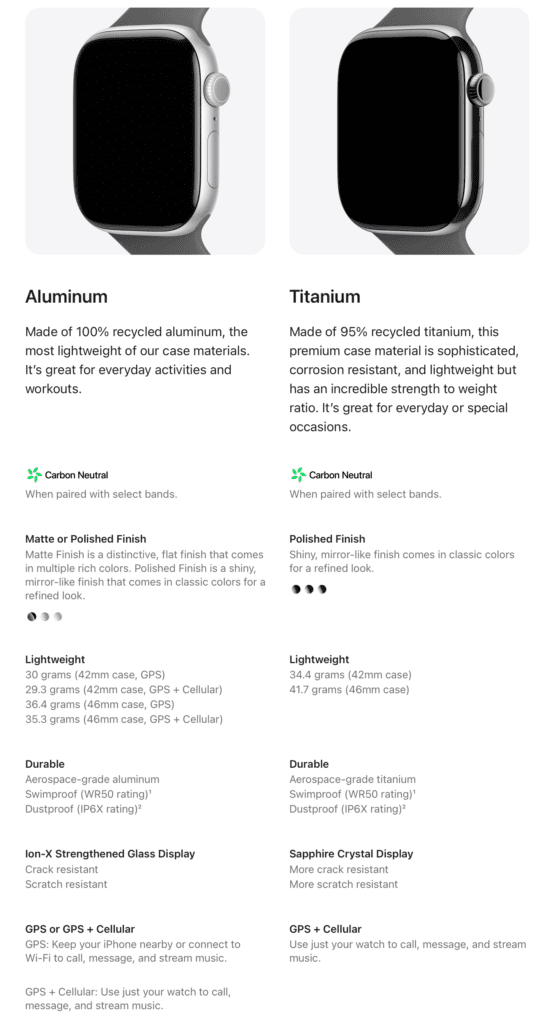
This is a matter of budget, personal preference and taste, but I find the aluminium watches too “gadget-y” in their look. The titanium ones on the other hand look beautiful and like true works of art – especially now after the reduction in thickness. The difference in person is striking and cannot be accurately reflected in photos online. It really upgrades the look of an Apple Watch to an accessory.
As an additional (massive) benefit, all titanium models always comes with GPS + Cellular so you are not paying extra for that, plus they come with a much more crack and scratch resistant display (sapphire crystal vs glass).
3) Size
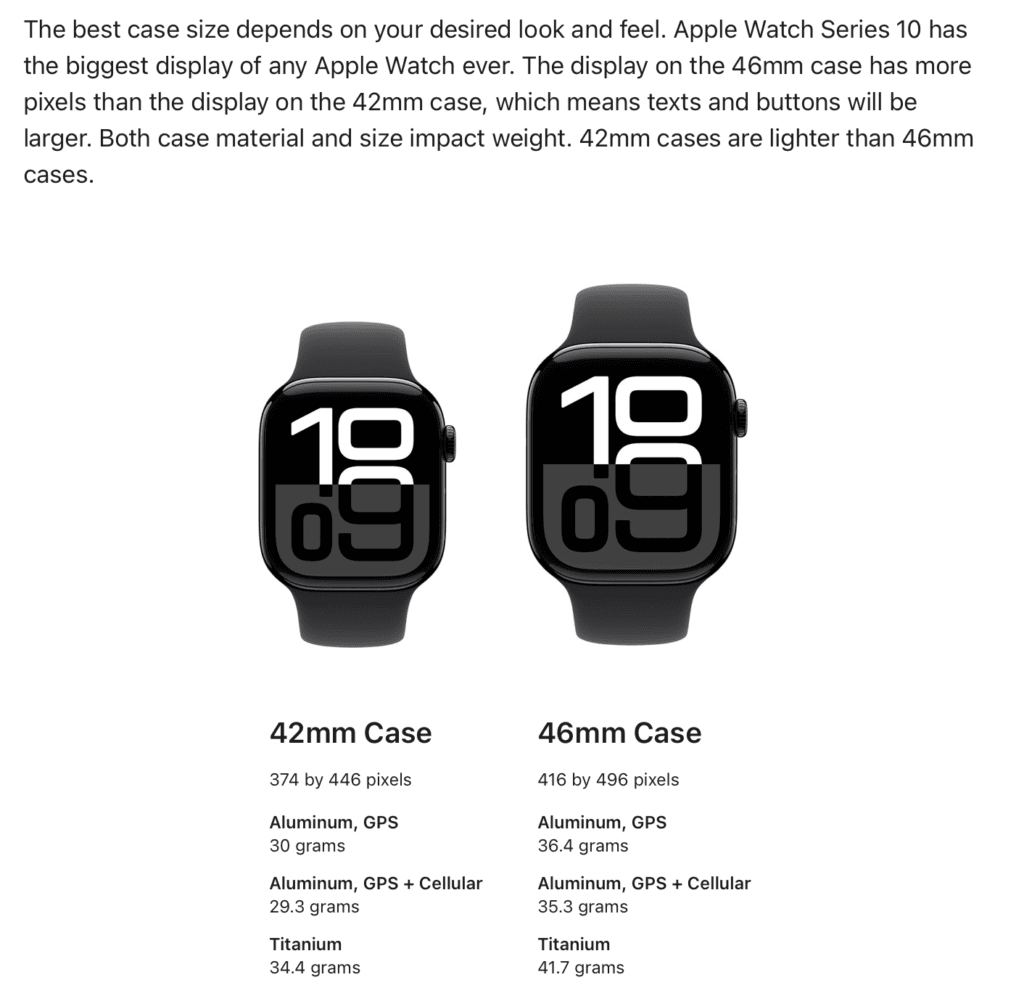
Go bigger than you first think. This has nothing to do if you are male or female or if you have big or small wrists. Really. It ain’t related. The watch also doesn’t look anywhere near as big on your wrist as it looks when you look at your own wrist. Look at other people instead. See if you think theirs look big. You won’t.
Honestly, I think everybody should go with the larger size. You get a larger display and better battery life – two primary features of the Apple Watch. The bigger the display, the more you will enjoy using it – and more battery life doesn’t need explanation.
But in the end, if you really want to go small – go small. Just really consider this first, and try them out. Don’t just auto-jump to small because of any of the above reasons.
4) Color
Pick something that you like and preferably also a color that goes with a lot of different clothes and bands. I don’t really have an opinion here. If I am picking only for myself, and I had to buy an aluminum watch, I would go with Jet Black for sure. On titanium versions both Natural and Slate are beautiful finishes, and Gold is cool too but not for me.
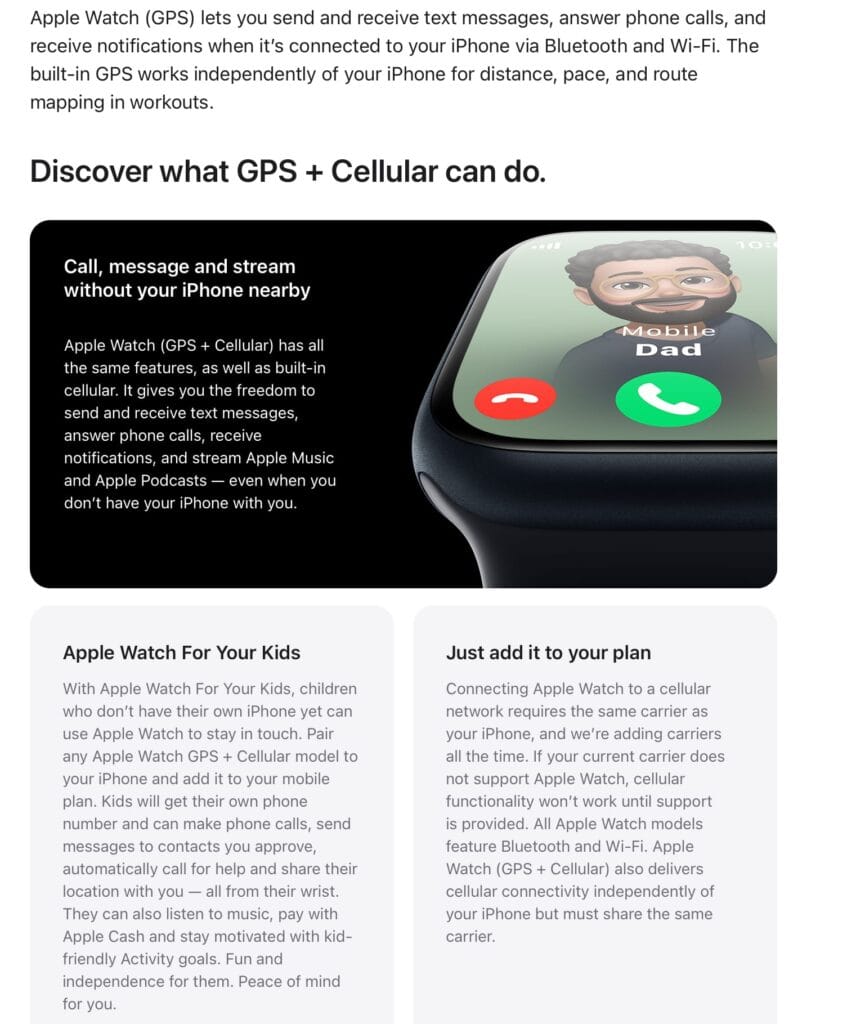
5) GPS or GPS+Cellular
The additional cost for GPS+Cellular is highly worth it, in my opinion. Part of the appeal of an Apple Watch is that it can act as a very standalone device. It is powerful enough and capable enough to replace much of what an iPhone does. So you are already paying for hardware to enable a lot of this (in the processor), so why not pay to also be able to use it without your iPhone present?
Don’t get me wrong, you can of course use an Apple Watch without your iPhone present. But it’s more limited, if it doesn’t have its own cellular connection. When it does have that, you can just leave home and you will keep getting notifications, calls and text messages as if you were carrying your iPhone (they share the same phone number). You can also make calls, send messages, stream music and podcasts – and just do anything that requires data or a cellular connection. It’s awesome! It’s also a massive safety feature, since you will more often wear than watch than not, it can make 911 calls internationally and anywhere you are.
6) Bands
This is very personal, but I can give some overall guidance.
Stay away from 3rd party bands. They are not worth the trouble (and their short lifespan)
Don’t cheap out. The band is a huge part of the look and feel of the overall Apple Watch experience, and it will impact how you feel about using it. Remember, the goal is to get you to wear it as close as possible to 24/7 in order for it to provide you everything it can offer. Then you want it to look good. That said, if your budget is having you forced to choose between cellular and not cellular, vs a cheap vs more expensive band – go with Cellular before you pick the fancier band. The band can be upgraded, the hardware functions cannot.
Don’t fret too much about band choice. Of course your first Apple Watch band should be something you think looks and feels good, but part of the fun with owning an Apple Watch is the interchangeability of the bands. You will buy others in the future anyways.
The Braided Solo Loops are awesome. They do require careful measuring of your wrist, but easy enough to do with a printer or if you go to an Apple Store. Functionally the regular Solo Loops are just as good, but the Braided ones are just nicer.
The Milanese Loop is by far the classiest one. It looks great. And the quality is more than 10x the Amazon copies you can find. Apple does not joke around when it comes to materials:
“Woven on specialized Italian machines, the smooth stainless steel mesh wraps fluidly around your wrist. And because it’s fully magnetic, the Milanese Loop is infinitely adjustable, ensuring a perfect fit. An additional physical vapor deposition layer gives the gold stainless steel its distinctive finish.”
7) AppleCare+
Always get AppleCare+, but get the monthly version so you don’t have to pick it at time of purchase. Just remember to activate it shortly after you made the purchase (you can do it from your iPhone).
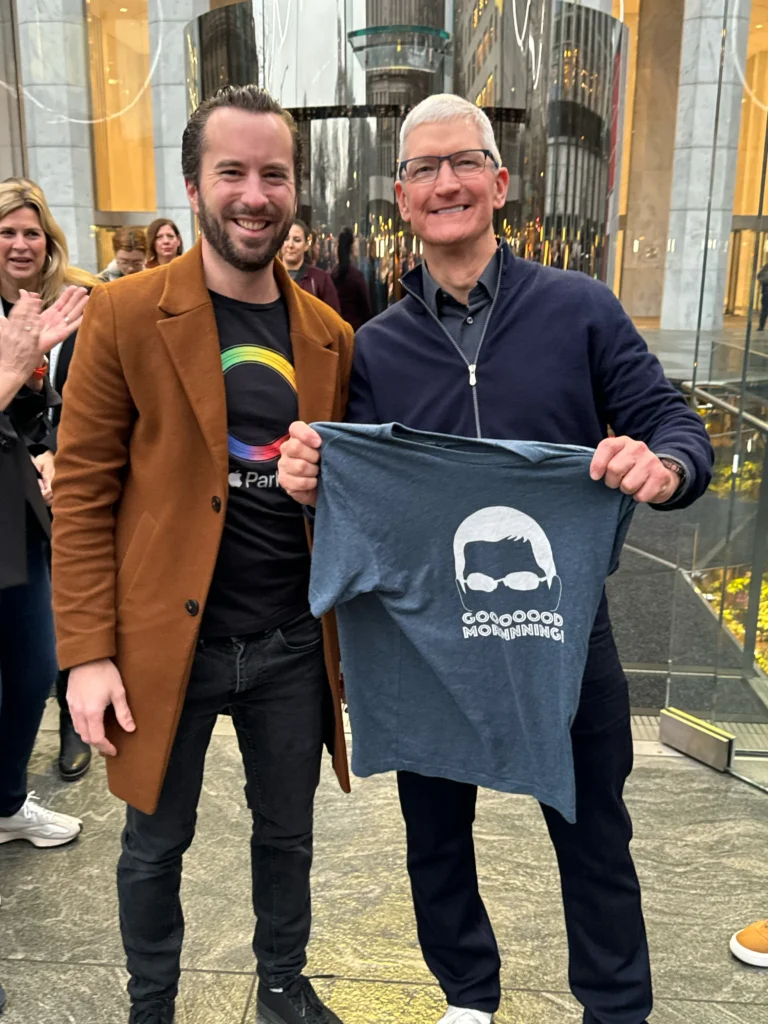
So, today I gave Tim Cook a Tim Cook t-shirt. And he hugged me. Here’s the story of how this went down.
First of all: this really wasn’t planned. At least not well. It just happened by very many lucky happenstances unfolding in a row. Second of all: truly the credit to this being at all possible goes to John Moltz who created the t-shirt that this story is about.
Travel and the t-shirt options
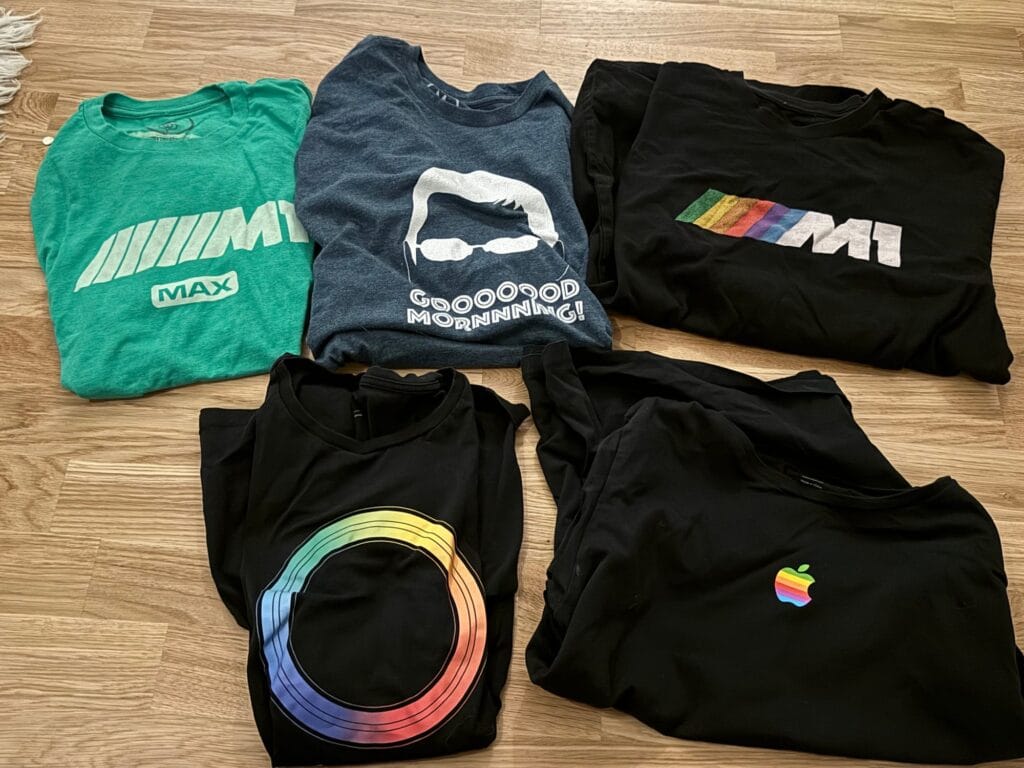
But let’s start from the beginning. The plan was to fly to New York from Stockholm, Sweden (where I live) with the sole purpose to buy the Apple Vision Pro. Yes, I should have planned along longer trip and seen New York and all that but life circumstances meant I had to be back as soon as possible. Anyways. I knew I wanted to wear SOME fun Apple-related t-shirt to the launch. Not because I thought any executive would see it, but because it felt right and if there was some other geek in the crowd that recognised it: fun! Or if I was in the background of some photo: also fun! I couldn’t decide which to wear though so I packed the below five shirts to decide later.
Top left to bottom right: Accidental Tech Podcast M1 Max t-shirt, the John Moltz creation that is the reason for all this, ATP M1 t-shirt, Apple Park and Apple six colors bought at the Apple Visitor Center in Cupertino
I’ve owned and worn all these t-shirts for a long time – the one in question was bought in 2021 and I most often wear it for when we do viewing events for Apple keynotes with friends.
I had the thought that it would be hilarious to wear the “GOOOD MORNING!!!” one IF Tim Cook was going to be there. But last minute, I decided against and went with the Apple Park one, but for some reason I put the “Good morning” one in my jacket pocket. Did I think I would get to hand it to Tim? Very much no. I just decided as I headed out the hotel room to grab it, thinking “Maybe I just put this on top of the other t-shirt if Tim is actually there, and if he seems me it could be really fun”.
New York arrival
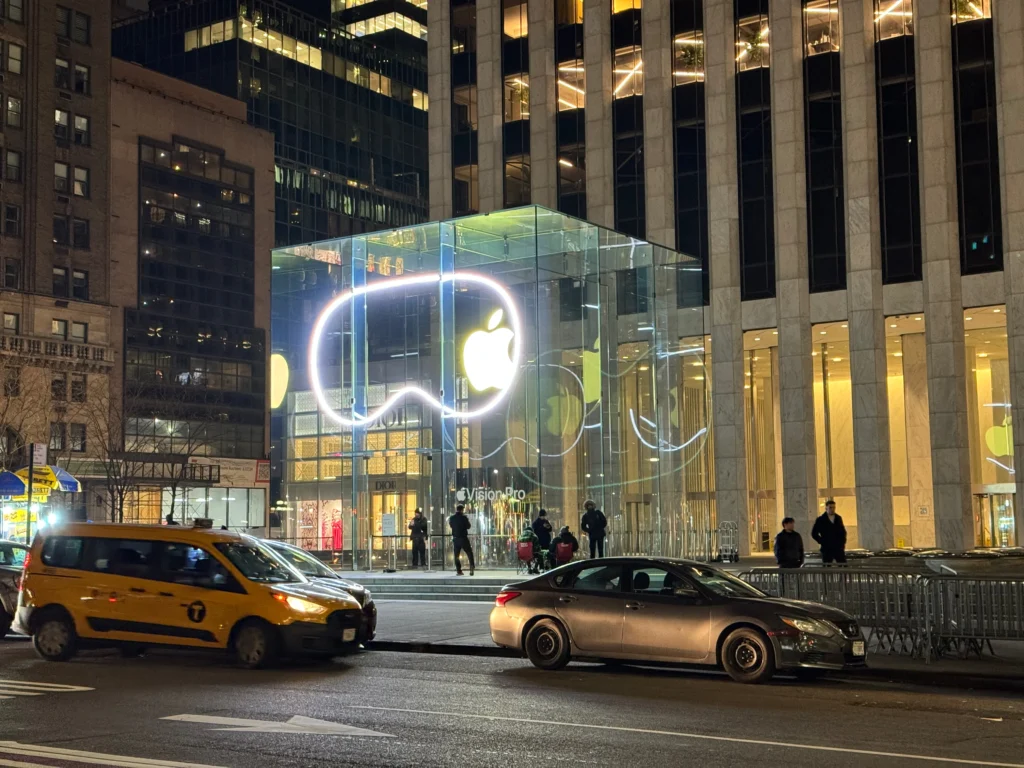
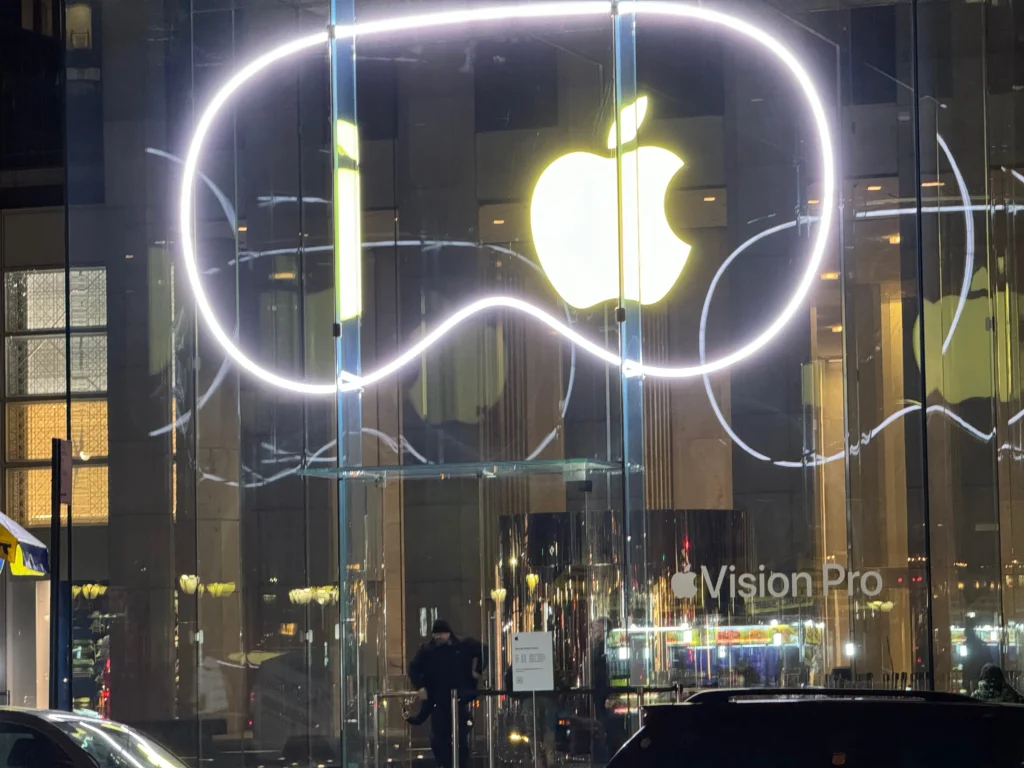
So, I get into New York last Thursday evening, I went at midnight to check out the store and it looked awesome.
I had an 8:15am appointment at Apple Fifth Avenue to pick up my (cough, two, cough) Apple Vision Pro. I got there around 7:30 because I figured there’d be some amount of cool stuff/vibe happening. I only hoped Tim would be there, as he was for iPhone 15 launch, but I had no way of knowing for sure. Then at maybe 7:40 the crowd reacts and suddenly he’s walking past fist bumping those in queue, Joz closely behind him. I’m not even in queue yet, I was just walking around. I thought this would be it, cool to see him from a near distance. Grabbed a few shots.
Time to line up
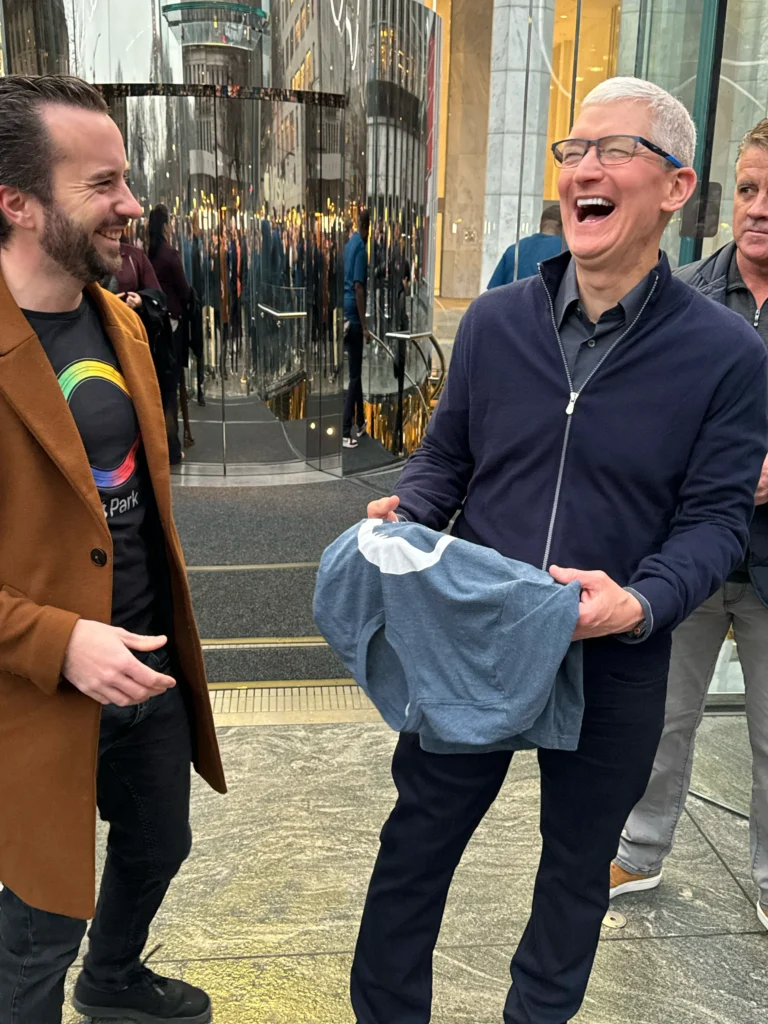
Then I was put in the queue by the Apple folks, with maybe 30-50 people in front of me that had earlier appointments. I was far enough back to not see the store front so I was thinking “too bad I won’t get to see Tim come out and open the store now”. But as the countdown happens to 8am and the queue starts moving (all the Apple folks where shouting “AVP! AVP! AVP!” during the countdown, so pretty sure that’s the official term now!), I am realising quickly that everybody gets to shake hands with Tim Cook as they go in! And some even grab a selfie! I take out the t-shirt of my pocket and show it to my Apple escort (everybody in the queue has one Apple Retail person assigned to them) and ask, “Hey, should I give this to Tim!?” He laughs out loud and say for sure. That gave me the confidence I needed. So, it’s my turn and I didn’t even have time to get nervous. I just went for it. He honestly seemed to love it. And honestly I don’t care if he faked it, it doesn’t make this any less awesome. I went for a handshake after he accepted the t-shirt, but he went for a hug instead (no news here, but, he’s jacked, btw). It was awesome. I didn’t get a word out of my mouth after that, and headed inside instead.
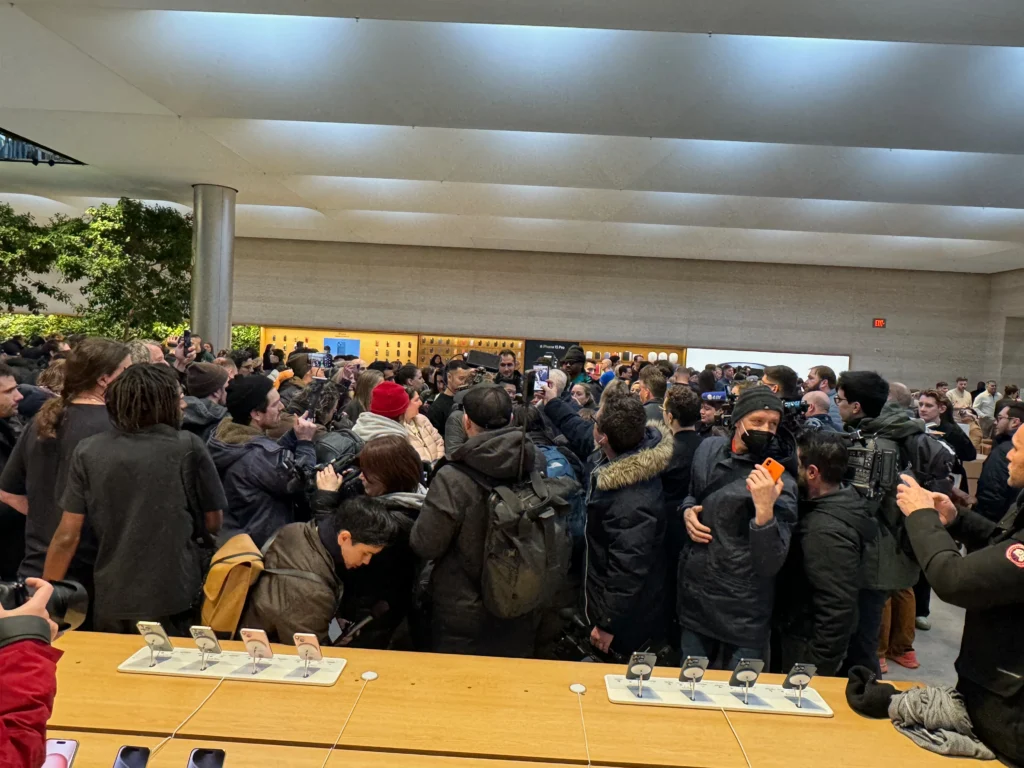
To again reinforce how lucky this was, here’s the crowd that was constantly surrounding Tim once we are all inside the store. There is zero chance I would have gone anywhere near that to try anything, way outside my comfort zone.
It was already one of the best days of my life! And I hadn’t even tried out the Apple Vision Pro yet. Or seen the reaction this would spark in the Apple community on Mastodon later today – and most especially John Moltz reaction which just made me smile even more, creator of the t-shirt itself.
Impressions
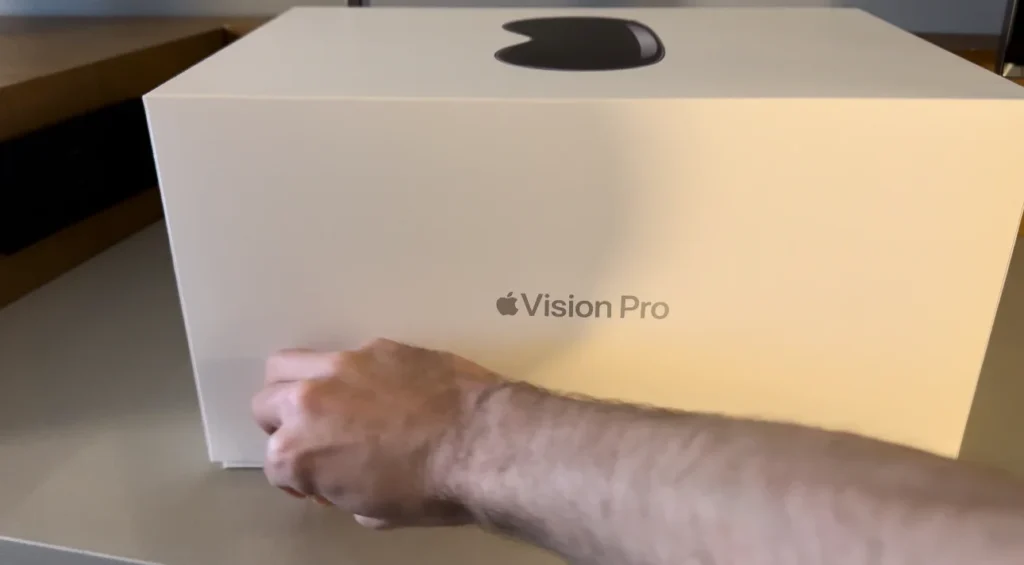
Here I am unboxing my purchase a few hours later at my hotel room, barely being able to focus because I was still wired up from earlier, plus my phone blowing up (I had like 20 followers on Mastodon when the day started, and I’m not an active poster anyway but a very active reader) so getting boosted by John Moltz – the creator and seller of the t-shirtin question, meant a lot of awesome activity on my Mastodon.
Impressions of Apple Vision Pro will however have to wait to a different day and different post. But in real short: I had high expectations and a very high degree of understanding what I would experience from reading every review and watching every YouTube video I could get my hands on in the last months, but nevertheless I was blown away. It has to be experienced to be believed, I cannot think of any product where that is as true for as it is for this device. I obviously have had very little time with it so far, it is now six hours since I left the store, so I intend to be back with more!
Updates
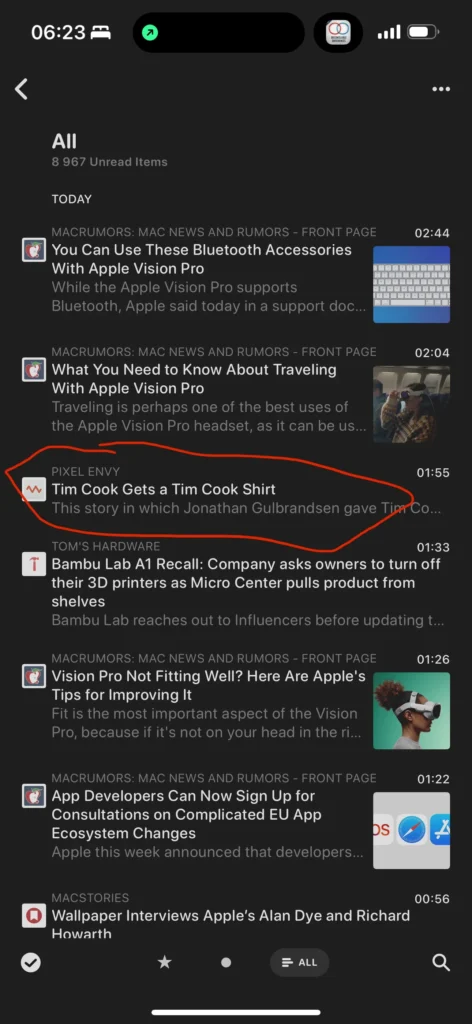
So my initial Mastodon post sits at almost 500 likes and 100 boosts at this point, and I realise in most context that is nothing but for somebody that had maybe 5 likes as his max before? Pretty cool. And it’s not the likes and boosts themselves but the fun new people I get to follow and the interactions it’s generating 🙂 Also: wild and surreal to see my own name when opening my RSS reader as Pixel Envy linked to this story.
CNBC video
CNBC caught the actual t-shirt moment on camera during their on-air segment about the launch, and it’s available on their YouTube channel – the t-shirt handover happens at 00:35 seconds.
CNET video
Not related to the t-shirt handover, but CNET also featured me briefly in their reporting from the launch (starting at 3 mins 10 seconds).
Tim Cook email
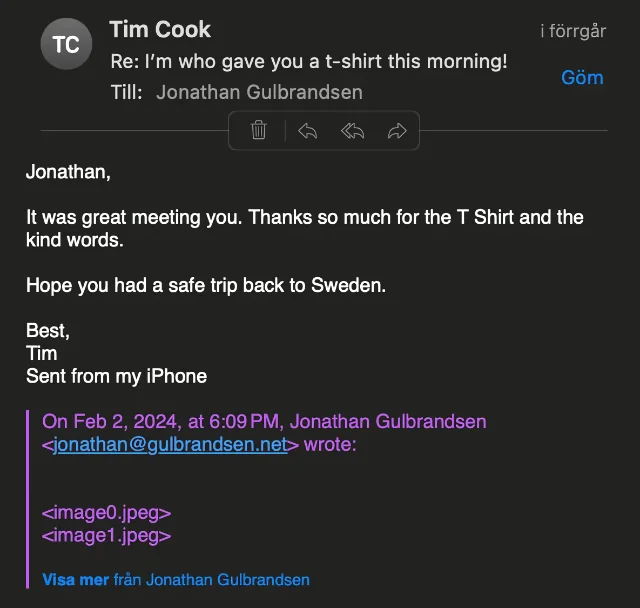
To put an absolute perfect ending to all this, Tim Cook actually responded to my email to him. On my way back on the same day, I just sent a very brief note containing what I would have said if I had my brain not scattered everywhere from the reality of it all when meeting him.